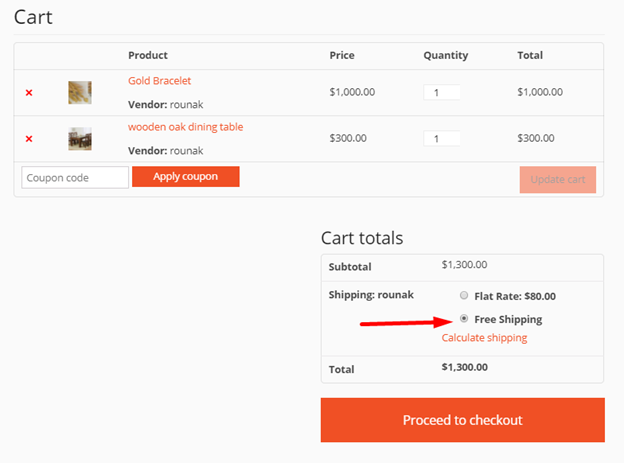
If you are looking to only use the built-in Fedex options, then you do not need to read any further – the calculations have been taken into account for you. Just ensure that when creating a new product that you input the dimensions of the product so that Fedex can calculate the costs.
If you intend to use any shipping options in addition to Fedex, the additional options are below:
Vendors need to navigate to Store→My Boutique→Settings→Shipping.
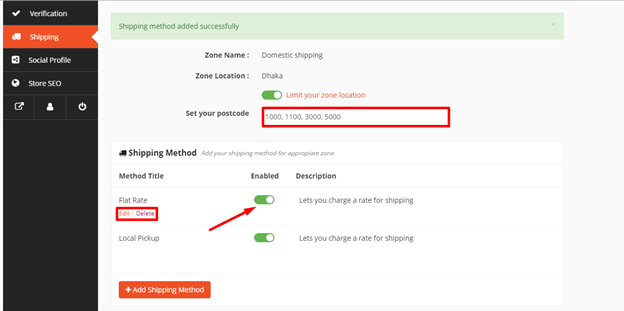
From here, a vendor can add shipping methods by clicking on Edit or Add Shipping Method.
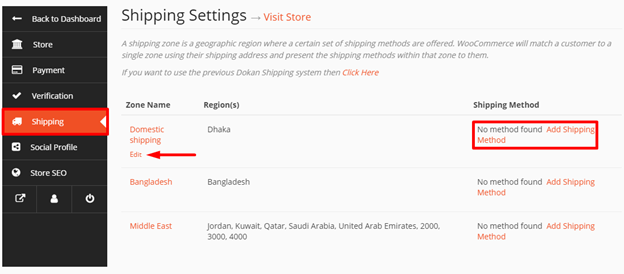
A new page will open.
From here vendors can choose to limit zone location for his customers and also add new shipping methods.
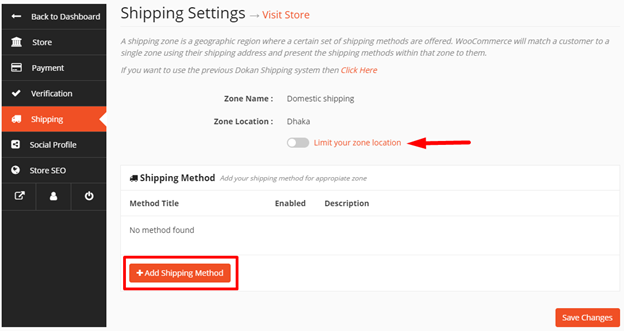
To add shipping methods, vendors need to click on Add Shipping Method and select one from the drop-down.
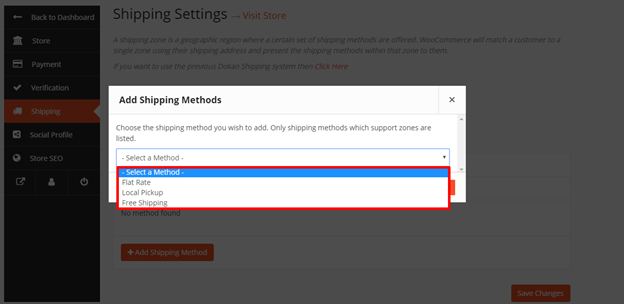
In this way, vendors can add unlimited shipping methods. By hovering over the shipping method, vendors can edit and delete. And the toggle button can be used to enable/disable a shipping method.
Vendors can also limit zone location using postcodes that apply to customers purchasing from that zone.
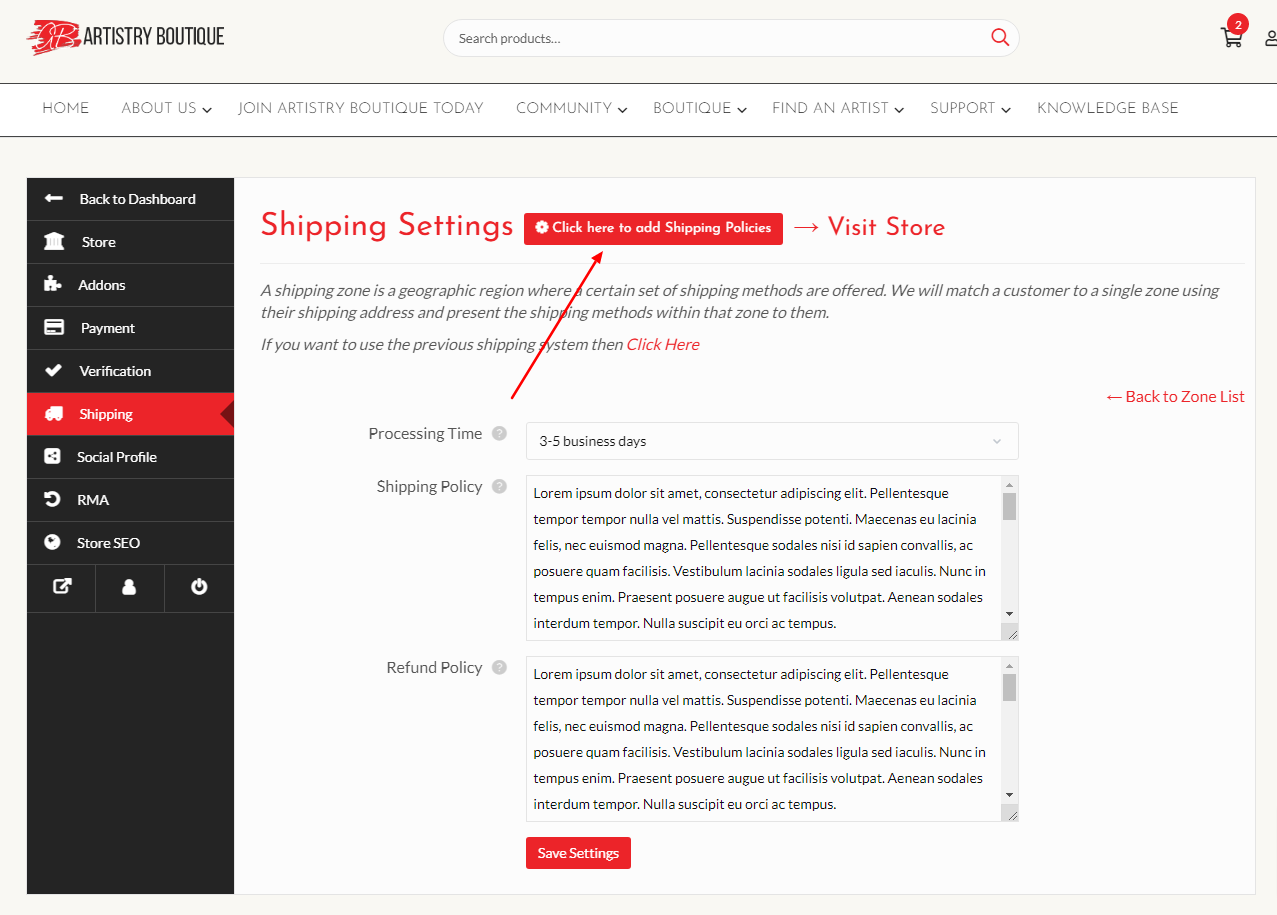
The latest feature added to the shipping settings of Artistry Boutique is the ability to add the shipping policy and processing time. A vendor now can set his own shipping policy and shipping processing time for the customers. Just simply click on the policy settings tab on the top right corner marked shown in the image below to manage the shipping policy settings.
3a. Flat Rates
Each Shipping Zone can have different(and multiple) Flat Rates if you wish.
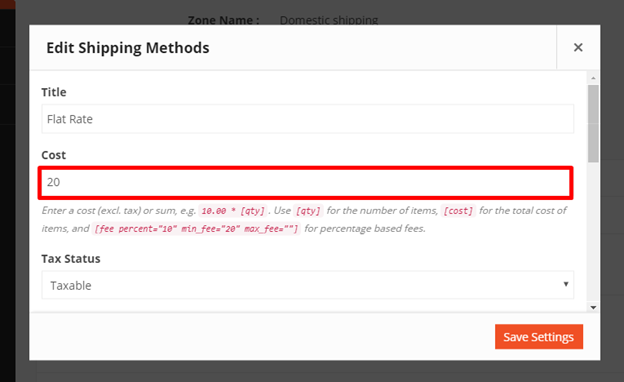
1. To make changes to a shipping method, vendor needs to click Edit.
2. Vendor can change the Title if he wants to or keep it as default. This title displays to customers in checkout.
3. Next he has to add the Cost (this is applied to the entire cart).
4. Select its Tax Status (define whether or not tax is applied to the shipping amount).
5. You can also type a Description for this method if you prefer.
5. Click on Save Settings.
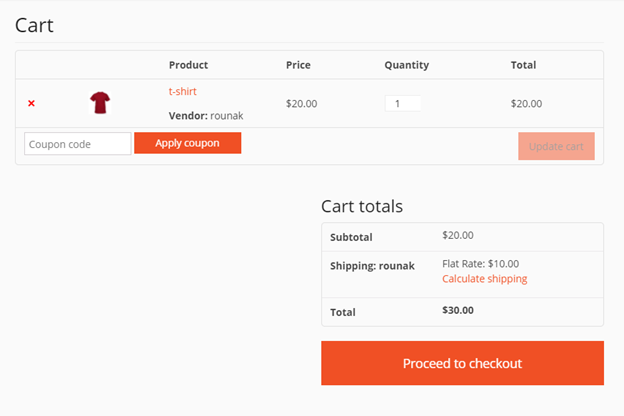
Cart View
3a.i. Shipping Classes – Vendor Settings
Shipping classes won’t apply unless you specifies from Edit Product.
Our team needs to first create the shipping class (as shown above) before you can access them from his dashboard.
You can specify shipping class costs for all the shipping classes that admins have created. Vendors will be able to access these classes for the Flat Rate method only.
You can specify his own conditional rates for the shipping classes.
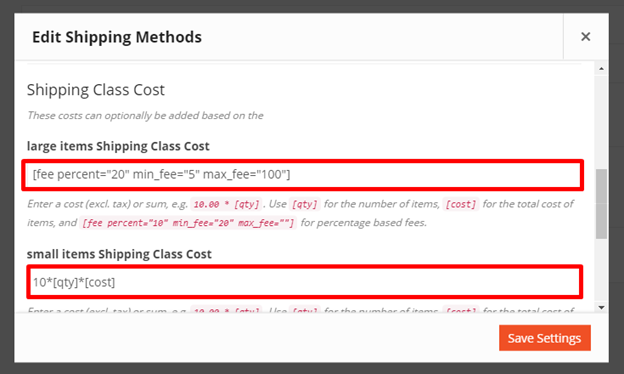
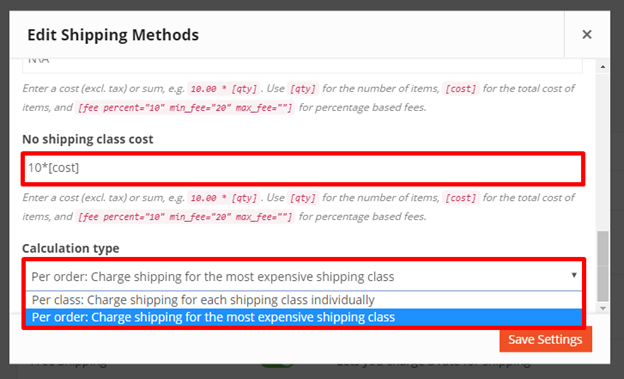
Then select the cost when no shipping class will apply.
You can also select the Calculation Type:
- Per Class: Shipping rates will apply accordingly class-wise.
- Per Order: Shipping rates will apply on the total order cost, and the most expensive shipping class rate will apply.
3a.ii. Configuring Product-wise shipping class
- Navigate to Store→My Boutique→Products.
- Select the product you want to add shipping class to by hovering on the product name and click on Edit.
- Scroll down to the section that reads Shipping and Tax.
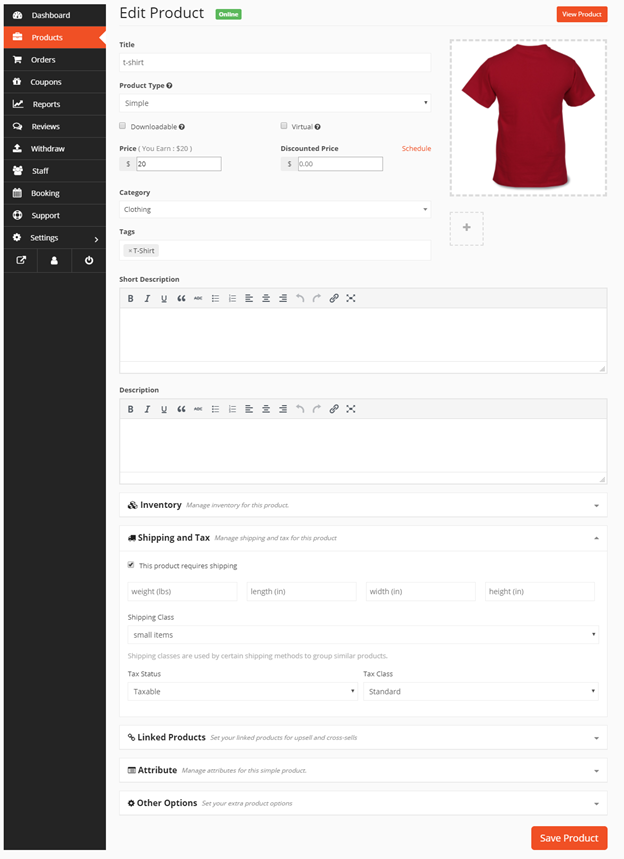
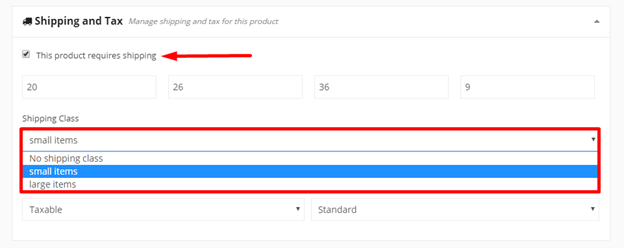
4. First enable the checkbox “This Product Requires Shipping”.
5. Next, input the details as required for weight, length, width and height.
6. Now select the shipping class you want to apply to this product from the drop-down.
7. Select Tax Status and Tax Class.
8. Click on Save Product.
Note: Each product can have one shipping class.
Cart View
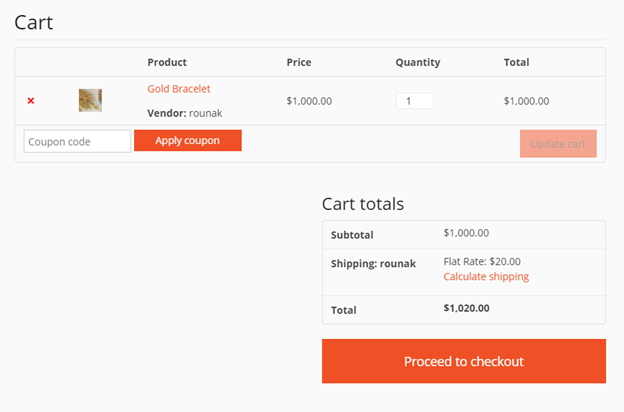
The rule is if the Flat Rate and Shipping Class rate both are defined, then both will apply when the customer is checking out.
For example, if you have set Flat Rate at $10, and Precious Items Shipping Class Cost at $10*[qty], and your customer select 1 gold bracelet, then your shipping cost will be $10+$10*[1] = $20.
Note: You must set the shipping class for this particular product from My Boutique→Products→Edit→Shipping and Tax so it works.
3b. Local Pickup
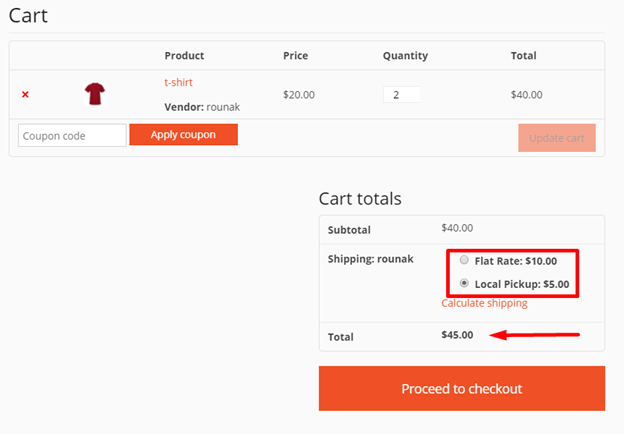
In Local Pickup, customers can pick up the order themselves from a designated location.
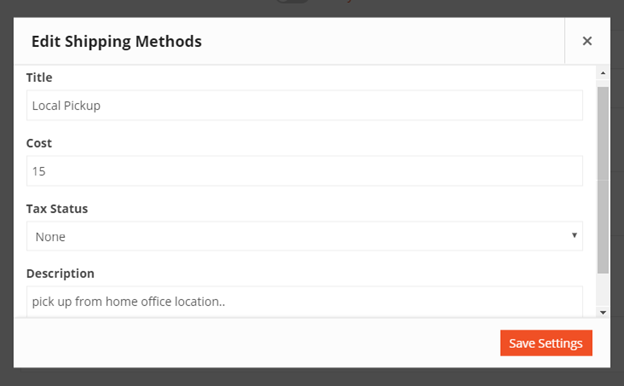
1. To make changes, hover over the shipping method and click on Edit.
2. Enter a Title that displays to customers in checkout – some shops change the title to Local Delivery, for example.
3. Enter Cost – Cost for the option, is applied to entire cart.
4. Select Tax Status. Then click on Save Changes.
Cart View
3c. Free Shipping
Free shipping is a great way to encourage customers to spend more. For example, offer free shipping on orders over $100.
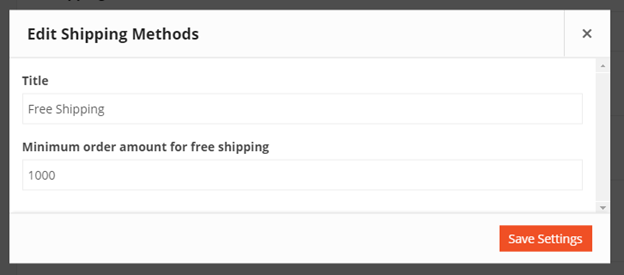
1.Enter a Title that displays to customers in checkout.
2. Enter a Minimum Order Amount (if applicable).
3. Click on Save changes.
Cart View